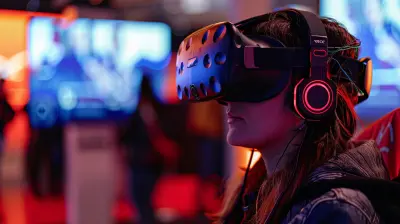
Can VR Games Performed Well on Your PC?
2 December 2025
Virtual Reality (VR) gaming is like stepping inside your favorite game world and living it—pretty wild, right? But before we dive into slashing zombies or flying spaceships in 360 degrees, there’s a big question you have to answer: Can VR games perform well on your PC?
Let’s break it down. There’s no worse feeling than investing in a VR headset, downloading your dream game, and then bam—laggy framerates, screen tearing, and nausea-inducing stutters. Yikes.
But don’t worry—we’re going to walk through everything you need to know to figure out just how ready your PC is for the world of VR gaming.
What Makes VR Gaming So Demanding, Anyway?
VR isn’t your average gaming experience. In traditional gaming, your PC is only rendering one screen. With VR? You're asking your computer to render two high-resolution displays at once, and at high frame rates—usually 90 FPS or higher.Think of it like sprinting instead of walking. Your PC is doing the same thing, but faster and harder, and it’s sweating bullets by the end of it.
Let’s take a peek under the hood to see what your PC needs to handle this virtual workload.
Minimum vs. Recommended VR Specs—Why It Matters
All VR headsets, from the Oculus Quest 2 (in PC mode) to the HTC Vive, come with minimum and recommended PC specs. But here's the thing—minimum is just that: the bare minimum. Sure, your experience might “work,” but it probably won’t be smooth.Let’s quickly compare the typical baseline:
| Component | Minimum Specs | Recommended Specs |
|----------------|----------------------------------------------------|-----------------------------------------------|
| CPU | Intel i5-4590 / AMD Ryzen 5 1500X | Intel i7-9700K / AMD Ryzen 7 3700X |
| GPU | NVIDIA GTX 1060 / AMD RX 480 | NVIDIA RTX 2070 / AMD RX 6700 XT |
| RAM | 8 GB | 16 GB |
| Video Output | HDMI 1.3 / DisplayPort | HDMI 1.4 / DisplayPort 1.2 or newer |
| USB Ports | 1x USB 3.0 and 2x USB 2.0 | Multiple USB 3.0 ports |
| Operating System | Windows 10 | Windows 10/11 64-bit |
Now, if you’re just barely skimming the minimum requirements, expect performance issues. It’s like driving a sports car with lawnmower tires—it doesn’t matter how fast the engine is, your experience won't be great.
The GPU: Your VR Journey’s MVP
Let’s not sugarcoat it: your graphics card matters—a lot. Your GPU is basically the heart of all things VR. It takes care of rendering those beautiful worlds at high frame rates to make your experience smooth and immersive.If you’ve got an RTX 3060, 3070, or anything newer? You’re golden. Even the older RTX 2060 can hold up well with medium settings. But anything under a GTX 1060 might struggle.
And here's a tip—VR is super sensitive to frame drops. Unlike regular games where a tiny stutter is annoying but tolerable, in VR it can literally make you feel sick. So your GPU needs to work overtime to prevent that.
CPU: The Unsung Hero
While the GPU gets most of the attention, don’t sleep on the CPU. It’s handling physics, tracking, background processes, and basically everything your graphics card doesn’t.Games like Half-Life: Alyx and The Walking Dead: Saints & Sinners are super CPU-intensive. If your processor can’t keep up, you’ll see jittery motion and delayed input—again, nausea city.
So what should you aim for? A modern quad-core or six-core processor. The newer the better, especially with multi-threading.
Let’s Talk RAM (Because It Matters, Too)
VR games typically require more RAM than standard titles. 8 GB might be enough for some lighter games, but if you’re multitasking (and let’s face it, you probably are), 16 GB is your best bet.RAM is like your gaming desk—the more space you have, the more efficiently you can work. If you're constantly running out of memory, your system will slow down and you'll crash more often.
Storage: SSD vs. HDD—Why Speed Rules
When it comes to VR gaming, traditional hard drives don't cut it. Load times are longer and you’ll see more texture popping or delays in-game. An SSD, especially an NVMe SSD, makes everything feel snappier.Bonus points if your VR headset software and games are installed on the SSD. It can shave off serious boot and load times.
VR Headset Compatibility: What to Check
Every VR headset has different PC requirements. Some, like the Valve Index, want beefier hardware due to their high refresh rates (120Hz or 144Hz), while others like the Oculus Quest 2 (when tethered via Oculus Link) are more forgiving.Check your headset’s official guidelines, but also look into user forums or Reddit for real-world benchmarks. Sometimes, what works well on paper doesn’t quite hit the mark in practice.
Also, don’t forget about inside-out vs. outside-in tracking. If your headset uses external sensors (like the original Vive), you’ll need extra USB ports and setup space.
Testing Performance: Can Your PC Really Handle It?
So now you're wondering: “Can I test VR performance without buying a headset yet?”Yup! NVIDIA and SteamVR both offer performance test tools. These tools simulate VR workloads and give you a breakdown of how your system will perform.
Some key indicators:
- Green = Good to Go
- Yellow = Might Work with Tweaks
- Red = Save up for Upgrades First
Do this before investing in a headset—it’s like test-driving a car before buying it.
What If Your PC Doesn’t Cut It?
Hey, it happens. Not everyone has a high-end gaming rig, and that’s completely fine. Here are your options:1. Lower Settings
Some games allow you to drop the graphics settings just like regular games. It might not look ultra, but it’ll still be fun.2. Cloud Gaming for VR (Yes, It’s Coming)
Emerging services like PlutoSphere and Shadow are working on bringing VR to the cloud. Still early days, but it could be a game-changer for those with weaker PCs.3. Upgrade Selectively
Often, you don’t need a full rebuild. Swapping in a stronger GPU or adding RAM can be enough. Even upgrading from an HDD to an SSD can make a HUGE difference.Cooling and Power Supply—The Overlooked Duo
VR games push your PC hard. That means more heat, more power draw, and more stress on your system. Make sure your PC case has good airflow, and your power supply (PSU) can handle the load.You don’t want your PC shutting down mid-battle because it's overheating or underpowered. That’s like your sword breaking mid-duel—awkward and game-breaking.
Tips for Optimal VR Gaming on PC
Let’s get you up and running smoothly. Here are a few quick-fire tips:- Close background apps like Chrome or Spotify before gaming.
- Update GPU drivers regularly. VR optimization updates come often!
- Use wired connections for fewer glitches and reduced latency.
- Calibrate your play area for room-scale games—don’t knock over a lamp.
- Clean your headset lenses often. Dust = blur = bad immersion.
Final Thoughts: Is Your PC VR-Ready?
So, can VR games perform well on your PC? The honest answer is: it depends on your hardware. If you’re rocking a modern GPU, a solid CPU, and at least 16 GB of RAM—yes, you’re probably ready for an awesome VR experience.But even if your rig is a little behind the curve, don’t count yourself out just yet. With a few smart tweaks, upgrades, or lowering settings, you can still dip your toes into the incredible world of virtual reality.
And let’s be real: once you’ve tried VR, there’s no going back. It’s like switching from black-and-white TV to HDTV—your brain just loves the immersion.
So go ahead, check those specs, run a performance test, and make the leap. The virtual world is waiting.
all images in this post were generated using AI tools
Category:
System RequirementsAuthor:

Lucy Ross
Discussion
rate this article
2 comments
Reid Fletcher
VR gaming on PC can deliver an impressive experience, but performance largely depends on hardware specifications. A powerful CPU, a high-end GPU, and adequate RAM are essential for smooth gameplay. Without the right setup, you may encounter lag and poor visuals, diminishing the immersive experience.
December 5, 2025 at 3:35 AM
Lucy Ross
Absolutely! Optimal hardware is crucial for an impressive VR gaming experience on PC, as it significantly impacts performance and immersion.
Vanya Wolf
This article effectively explores the compatibility of VR games with PCs, highlighting performance considerations and hardware requirements, essential for gamers looking to optimize their experience.
December 2, 2025 at 4:13 PM
Lucy Ross
Thank you for your feedback! I'm glad you found the article helpful in understanding VR game compatibility and performance optimization.